How to Recover Data from a Dead Hard Drive
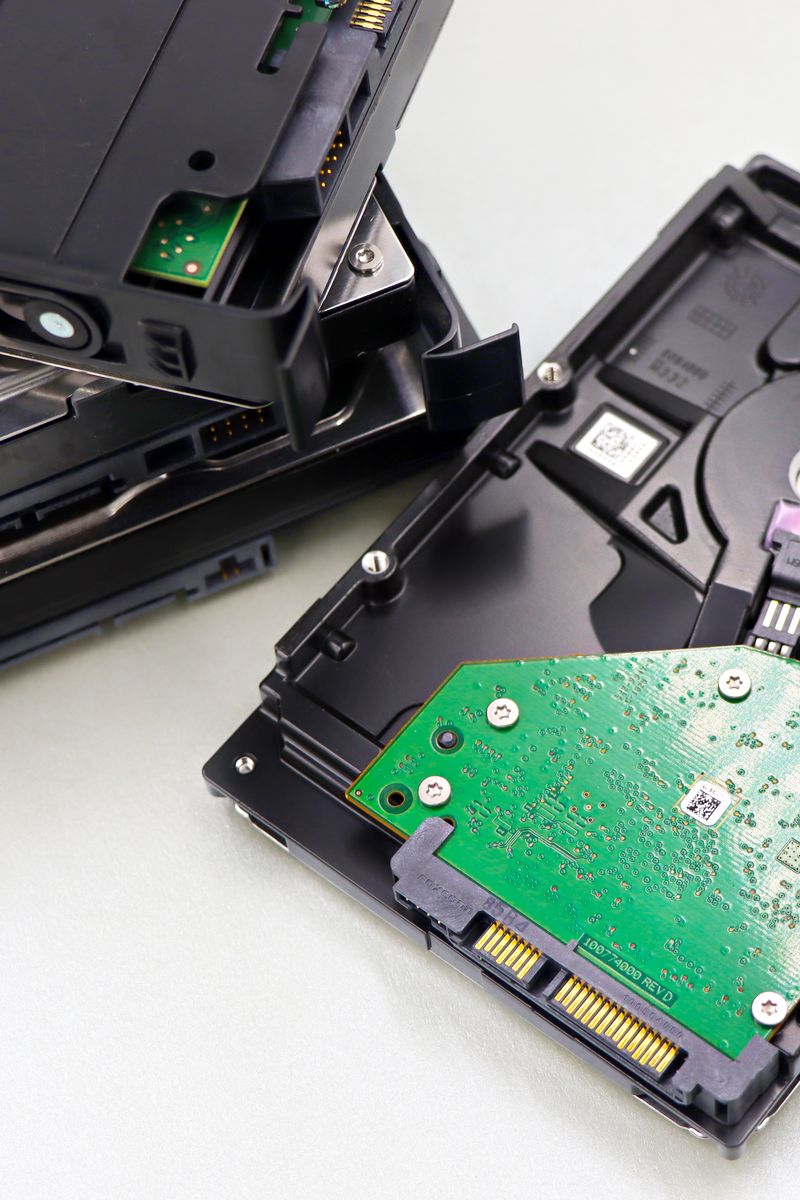
A hard drive that stops showing up in File Explorer is usually disconnected, corrupted, or wearing out rather than dead. You can recover files from many of these yourself in under an hour using a USB dock or a second computer. Stop and send the drive to a lab only when it clicks, buzzes, or spins down on its own.
Rule out the cheap fixes first
Swap the cable and the port before you assume the drive died. USB cables fail far more often than drives do, and a port that powers a mouse can still be too weak to spin up a 2.5-inch external drive.
- Try a different USB cable and a different port, ideally one on the back of the desktop
- Listen for the spin-up whir and watch for the drive to show up in Disk Management, not just File Explorer
When the drive does not mount
If the drive spins but does not mount, connect it through a SATA-to-USB dock or install it internally before running recovery software. A drive that mounts is a software problem; a drive that clicks or makes a repeated knocking sound is a physical one, and every spin you force on it removes a little more of your data.
Free recovery tools like PhotoRec and the free tier of Disk Drill will get back photos and documents if the platters still read. If the drive clicks, power it down, leave it off, and get a quote from a lab, because DIY attempts on a physically failing drive are how files become unrecoverable.